HA-MIC06
Hearit.AI ClinicMic
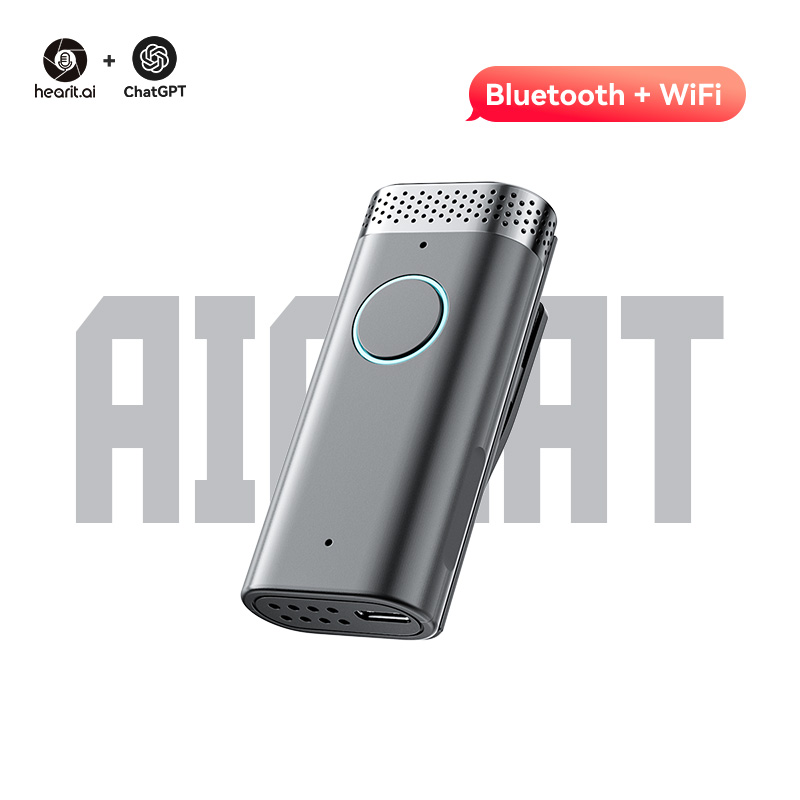
Table of Contents
- Introduction
- Specifications
- Quick Start Guide
- Hardware Guide
- Features in Detail
- Firmware
- Support
- Legal
1. Introduction
Your Ultimate AI Voice Companion with Advanced Sensors
The HA-MIC06 is Hearit.ai's most feature-rich AI-powered voice device, combining a hybrid microphone array with AI noise reduction, NFC reader, gyroscope motion sensing, capacitive touch controls, and multi-mode connectivity (Bluetooth 5.3 + Wi-Fi IEEE802.11 b/g/n). Built with Plastic + PCBA material, it is engineered for demanding professional environments — from healthcare clinics to corporate boardrooms and beyond.
1.1. Core Features Overview
- ✨ AI Voice Interaction: Connect to cloud-based large language models (powered by ChatGPT) for intelligent Q&A, content summarization, and more
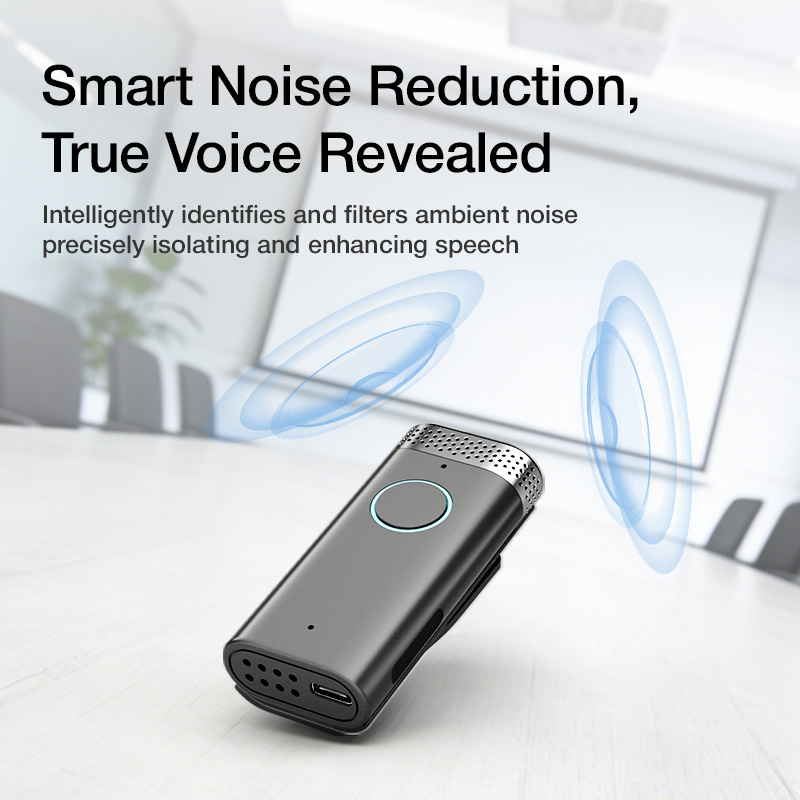
- 🎤 Hybrid Microphone Array: Condenser + omnidirectional pickup with AI-powered noise reduction for crystal-clear voice capture
- 🔗 Triple Connectivity: Wi-Fi (IEEE802.11 b/g/n) + Bluetooth 5.3 + NFC for maximum flexibility
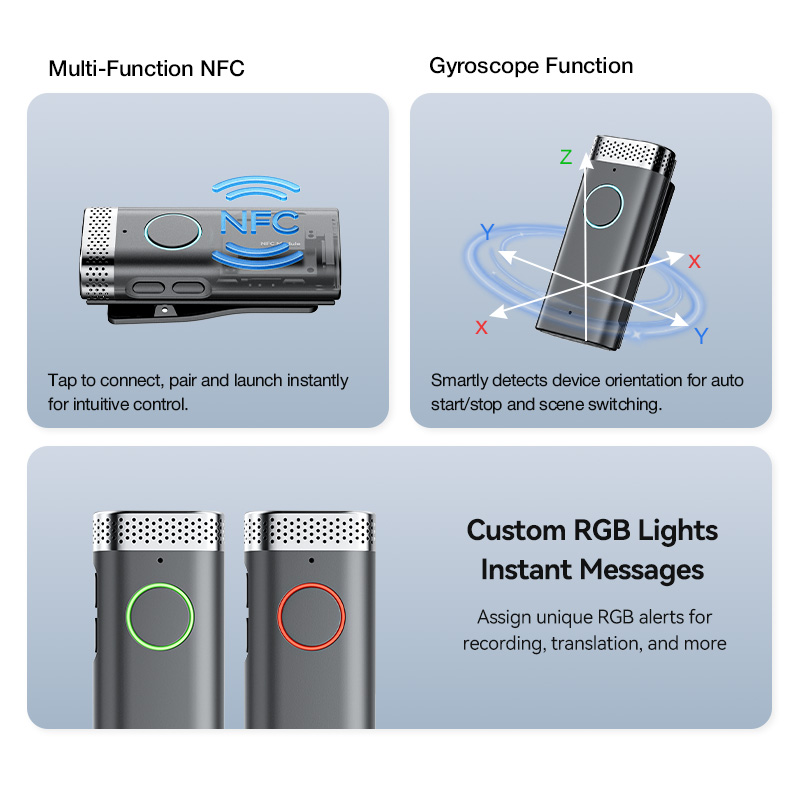
- 🏷️ Advanced NFC Reader: Supports Type A (Mifare, NTAG), Type B (ID cards), and Felica (Japan transit cards)
- 🌀 6-Axis Gyroscope: Motion wake-up, pick-up detection, and significant motion sensing for smart automation
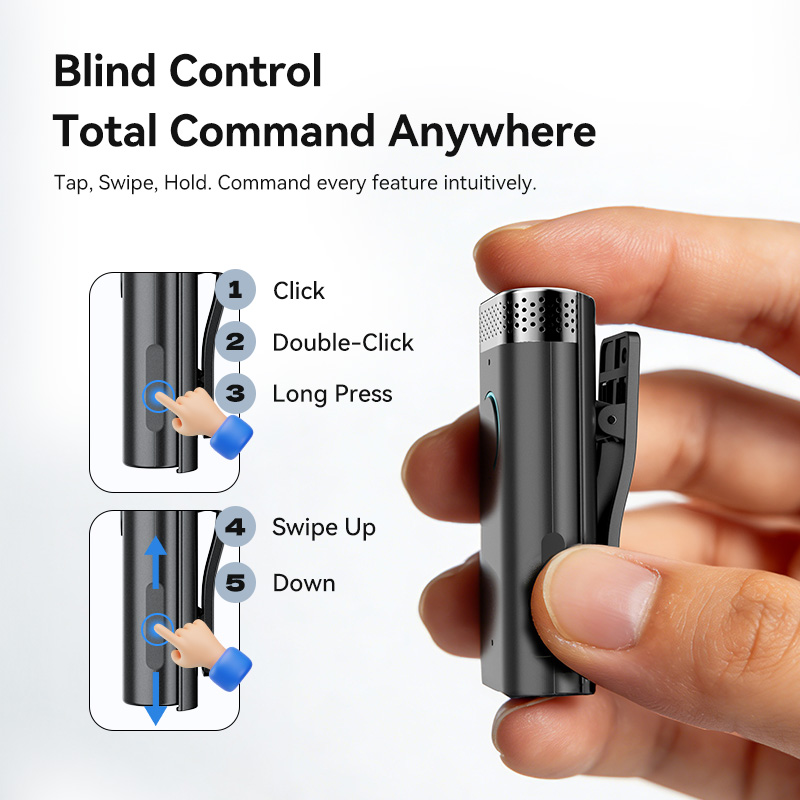
- 👆 Capacitive Touch Slider: Intuitive volume control via swipe or tap gestures
- 📝 Dual Recording Modes: BLE recording (via App) and local recording (saved to device memory)
- 🔊 Built-in Speaker: Audio playback, voice prompts, and music playback support
- 🖥️ USB Computer Mode: Works as a USB audio device when connected to a computer
- 🔋 Battery Life: About 9 hours of operation on a single charge
- 🏥 Material: Plastic + PCBA
- 🌍 52+ Language Support: Automatic language detection with comprehensive global coverage
- 🛠️ Full SDK Support: Comprehensive SDK for iOS, Android, and Web development

2. Specifications
The HA-MIC06 is a professional-grade AI voice device featuring hybrid microphone array, triple connectivity (Wi-Fi + BT + NFC), gyroscope motion sensing, capacitive touch controls, and Plastic + PCBA construction.
📦 What's in the box?
- 1 × HA-MIC06 Device
- 1 × Type-C Charging Cable
📄 Technical Specifications:
| Function | Parameter Details |
|---|---|
| Product Model | HA-MIC06 |
| Dimensions | 75 × 32 × 27 mm |
| Material | Plastic + PCBA |
| Microphone System | Hybrid array (Condenser + Omnidirectional) with AI noise reduction |
| Connection | Bluetooth 5.3, Wi-Fi (IEEE802.11 b/g/n, 2.4GHz) |
| NFC | Type A (Mifare, NTAG), Type B (ID cards), Felica (Japan transit) |
| Sensors | 6-axis Gyroscope / Accelerometer |
| Controls | 3 physical buttons + Capacitive touch slider + Haptic motor |
| Charging Interface | USB Type-C (multi-device dock compatible) |
| Battery Life | about 9 hours |
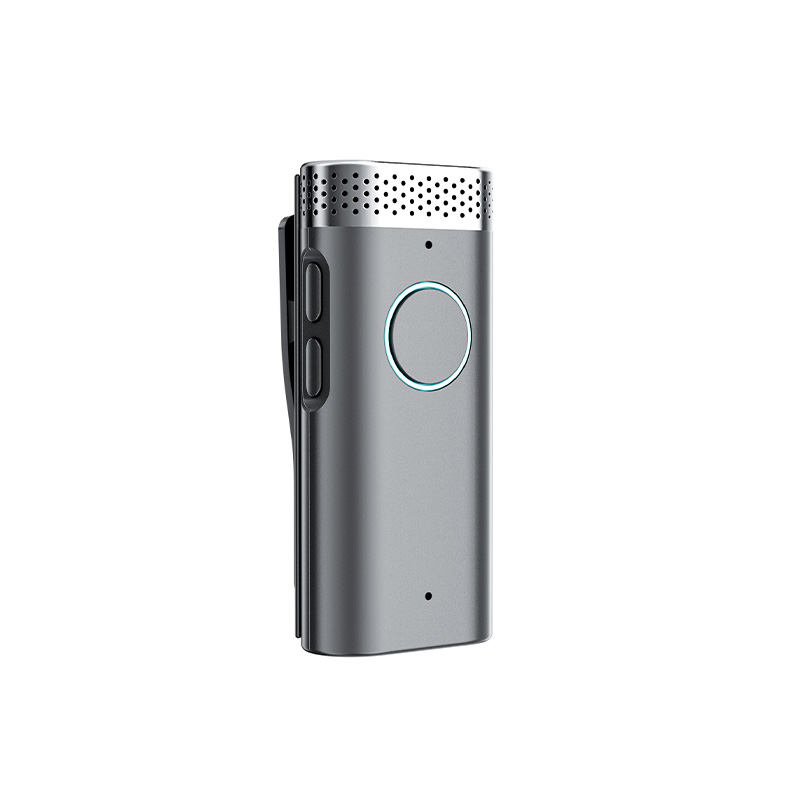
| Buttons | Front button, Side up button, Side down button |
| LED Indicator | RGB tri-color LED |
| Work Modes | Bluetooth Mode, Computer Mode (USB), App Mode |
| SDK | Full SDK for iOS, Android, and Web |
| App Support | Hearit.AI (iOS 11.0+ / Android 7.0+) |
3. Quick Start Guide
Get started with your HA-MIC06 in just a few simple steps.
Step 1: Unboxing & Charging
- Take the HA-MIC06 device and Type-C charging cable out of the package
- Before first use, we recommend fully charging the device using the included charging cable
- Charging: 🔴 Red LED solid
- Fully Charged: 🟢 Green LED solid
- Long Press (3s) the Front Button to power on the device — the indicator LED will light up
Step 2: Choose Your Usage Mode
Select the connection method based on your usage requirements.
Mode A: Connect via App (For Bluetooth Devices)
This mode provides full access to AI features and cloud processing through the Hearit.AI mobile app.
1. Download the App:
a. Search for "Hearit.AI" in the Apple App Store or Google Play Store to download and install
b. Download links:
c. Open the App and complete registration or login as prompted
2. Bluetooth Pairing:
a. Enable Bluetooth on your phone and bring the device close to your phone
b. Long Press (3s) the Front Button to power on the device
- LED: 🔵 Blue slow flashing (waiting for pairing)
c. In the Hearit.AI App home page, tap "Add Device" and select your device model (HA-MIC06) from the list

d. Follow the App prompts to complete the connection. Once connected successfully, the App will display "Connected"
- LED: 🟢 Green solid (App connected)
e. Tap "Start Using" to enter the main interface
Mode B: Connect to Wi-Fi (For Wi-Fi Devices)
This mode is suitable for firmware updates and advanced features that require Wi-Fi.
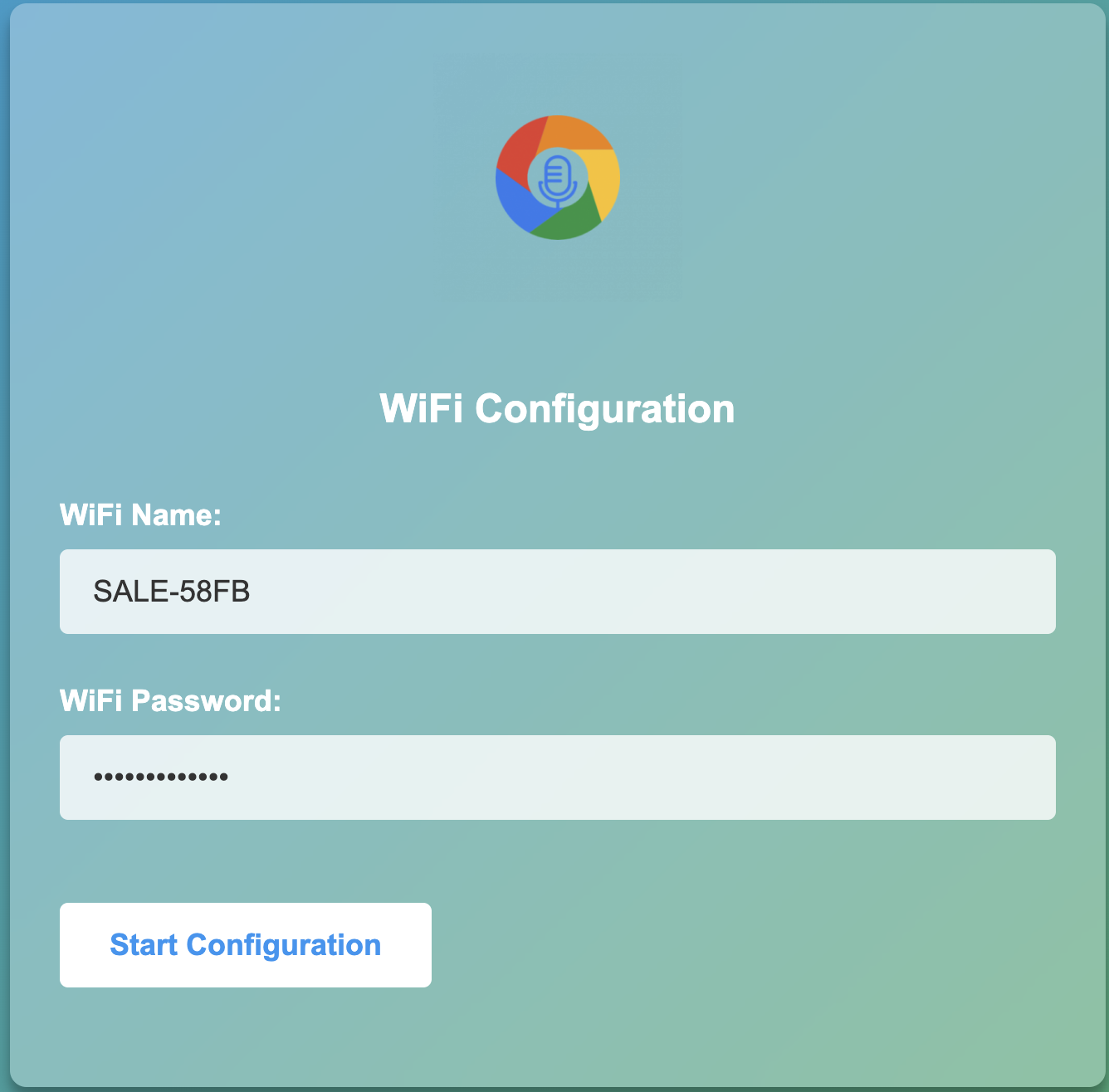
1. Enter Configuration Mode:
a. Visit https://hearit.ai/wifi/ in your web browser
b. Enter your WiFi network name (SSID) and password
c. Important: Make sure your WiFi network operates on the 2.4GHz frequency band
2. Connect Your Device:
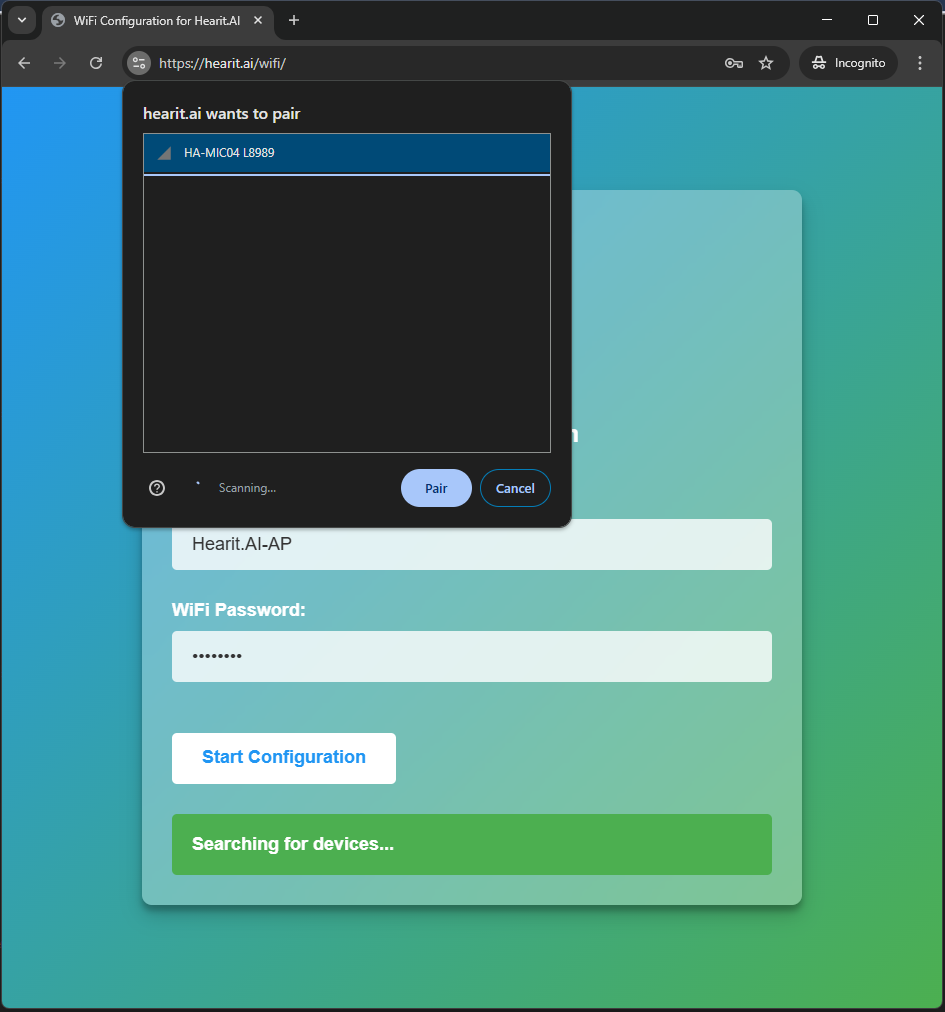
a. Click "Start Configuration"
b. When prompted, search for and connect to your MIC06 device
3. Transfer WiFi Credentials:
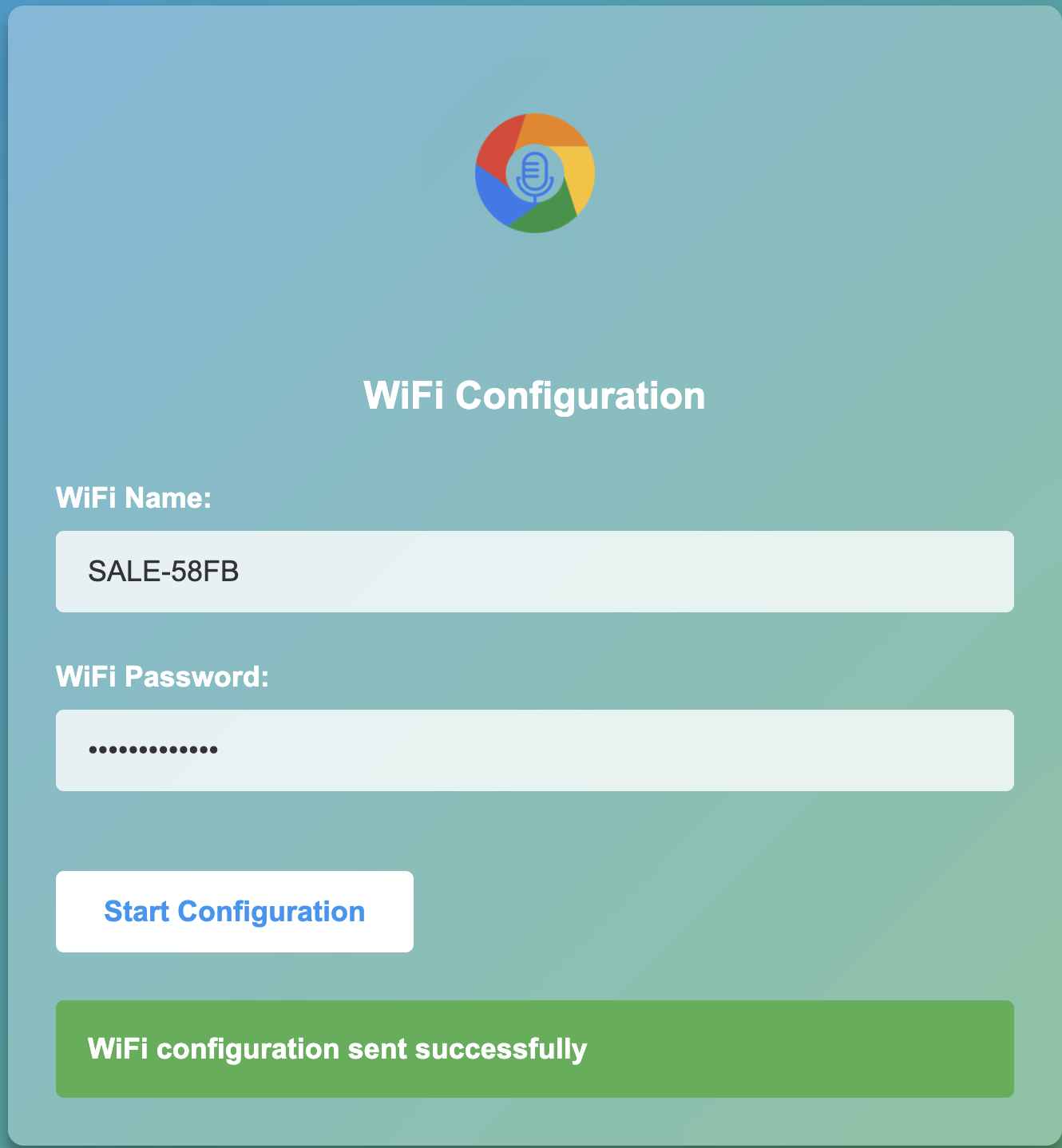
a. The website will automatically transmit your WiFi credentials to your MIC06 device
b. The device will automatically restart and attempt to connect to your configured Wi-Fi network
Mode C: Offline Recording (For Independent Use)
This mode is suitable for pure offline recording without any network connection.
1. Prepare for Recording:
a. Ensure your device is fully charged and powered on
b. Make sure App is disconnected
2. Direct Use:
a. Double Click the Front Button to start local recording (LED turns 🟢 Cyan breathing)
b. Double Click the Front Button again to stop recording. The recording will be saved to device memory
c. Connect the device to a computer via USB cable. The device will appear as a USB mass storage device (like a USB flash drive)
d. Access and copy your recorded audio files from the device to your computer
Step 3: Start Using
Congratulations! Your device is now set up. You can now begin exploring the powerful features of the HA-MIC06.
4. Hardware Guide
4.1. Button Operations
The HA-MIC06 has 3 physical buttons: Front Button, Side Up Button, and Side Down Button.
Front Button (Main Control)
| Operation | Function | LED | Audio Feedback |
|---|---|---|---|
| Single Click | Start/Stop BLE Recording (via App) | 🟢 Green breathing (BLE recording) | Short beep |
| Double Click | Start/Stop Local Recording (saved to device memory) | 🟢 Cyan breathing (local recording) | Short beep |
| 5× Click | Check & Update Firmware (requires WiFi) | ⚪ White flashing (updating) | Notification sound |
| Long Press (3s) | Power Off | LED off | — |
| 3× Click + Hold 3s | Factory Reset | 🔴 Red fast flash 10× then restart | — |
| 5× Click + Hold 3s | Enter USB Upgrade Mode | — | — |
Side Up Button (Mode Switch)
| Operation | Function | LED | Audio Feedback |
|---|---|---|---|
| Single Click | Switch mode: When App connected, switch App modes; When disconnected, toggle Bluetooth/Computer mode | 🔵 Blue flash once | Voice prompt (when connected) |
Side Down Button (Media Control)
| Operation | Function |
|---|---|
| Single Click | Play / Pause music |
| Double Click | Next track |
| Triple Click | Previous track |
4.2. Touch Controls
The device features a capacitive touch-sensitive area on the side, supporting swipe and tap gestures.
| Gesture | Function |
|---|---|
| Swipe Up / Tap Upper Area | Volume Up |
| Swipe Down / Tap Lower Area | Volume Down |
Tip: The touch slider provides smooth, intuitive volume adjustment — perfect for quick, one-handed operation without looking at the device.
4.3. LED Indicator Status
The HA-MIC06 features an RGB tri-color LED that indicates the current device state through different colors and patterns.
System Status
| Status | LED Pattern | Meaning |
|---|---|---|
| Normal Standby | 🔵 Blue solid | Device ready |
| BLE Not Connected | 🔵 Blue slow flashing | Waiting for Bluetooth pairing |
| BLE Connecting | 🔵 Blue fast flashing | Bluetooth connection in progress |
| App Connected | 🟢 Green solid | Connected to Hearit.AI App |
| Computer Mode | 🟣 Purple solid | USB connected to computer |
Recording Status
| Status | LED Pattern | Meaning |
|---|---|---|
| BLE Recording | 🟢 Green breathing | Recording via App (audio streaming) |
| Local Recording | 🟢 Cyan breathing | Recording to device memory |
Charging Status
| Status | LED Pattern | Meaning |
|---|---|---|
| Charging | 🔴 Red solid | Charging in progress |
| Fully Charged | 🟢 Green solid | Charging complete |
Battery Status
| Status | LED Pattern | Meaning |
|---|---|---|
| Low Battery | 🔴 Red flashing | Please charge the device |
Special Status
| Status | LED Pattern | Meaning |
|---|---|---|
| Factory Reset | 🔴 Red fast flash (10×) | Resetting in progress |
| Firmware Updating | ⚪ White flashing | Do not power off |
4.4. Power & Charging
Interface: USB Type-C (multi-device dock compatible)
Charging Status:
- Charging: 🔴 Red LED solid
- Fully Charged: 🟢 Green LED solid
Power Control:
| Operation | Method |
|---|---|
| Power On | Long press Front Button until LED lights up |
| Power Off | Long press Front Button for 3 seconds |
| Auto Sleep | Device enters low-power mode after idle period |
Battery Management:
- Working Time: about 9 hours continuous use
- Auto-Sleep: Device automatically enters low-power sleep mode when idle
4.5. Connectivity Features
Triple Connectivity:
The HA-MIC06 supports three simultaneous connectivity options for maximum flexibility:
| Mode | Connection | Description |
|---|---|---|
| Bluetooth 5.3 | BLE + Classic BT | App connection (BLE) + Audio playback (Classic BT) |
| Wi-Fi (IEEE802.11 b/g/n) | 2.4GHz | Firmware updates, cloud features |
| NFC | Near Field | Card reading, device pairing, access control |
Mode Switching:
- Press Side Up Button once to toggle between modes
- When App is connected: switches between App modes (Translation, Meeting, Custom Model, Note Taking)
- When App is disconnected: toggles between Bluetooth mode and Computer mode
4.6. Connecting to Computer (USB Storage & USB Microphone Mode)
When you connect the HA-MIC06 to your computer using a USB-C cable, the device automatically enters composite mode:
USB Storage Mode:
- The device appears as a USB flash drive on your computer
- You can directly access internal storage to copy, manage, or delete local recording files
USB Microphone Mode:
- The device is simultaneously recognized as a high-quality USB microphone by your computer
- You can select MIC06 as an audio input device in:
- System sound settings
- Meeting software (Zoom, Teams, etc.)
- Recording software (Audacity, etc.)
5. Features in Detail
5.1. AI Voice Interaction Modes
After connecting via the App, press the Side Up Button once to cycle through different AI-powered operation modes. The HA-MIC06 supports multiple operation modes with 52+ language support and automatic language detection.
🌍 Translation Mode
- 52+ Languages Supported: Comprehensive global language coverage
- Automatic Language Detection: No need to manually select input language
- AI-powered translation with voice output: Real-time translation using advanced AI
- Auto-detects spoken language: Seamlessly switches between languages mid-conversation
- Azure + Whisper Layered Translation: Enterprise-grade translation accuracy
- Great for international conversations: Perfect for business meetings and travel
📓 Meeting Recorder
- Multi-language Meeting Support: Automatically handles multilingual participants
- Record meetings with high-quality audio: Hybrid microphone array with AI noise reduction ensures crystal-clear capture
- Convert speech to text with accuracy: Real-time transcription in 52+ languages
- Get organized meeting summaries: AI-powered summaries with key points extraction
- Cross-language Transcription: Participants can speak different languages seamlessly
🤖 Custom Model
- ChatGPT Integration: Powered by advanced AI for intelligent responses
- Add your own AI instructions: Customize AI behavior for specific use cases
- Choose from ready-to-use models: Pre-configured models for different industries
- Adapt to different scenarios: Flexible AI responses based on context
- Multi-language AI Interaction: ChatGPT responds in the user's preferred language
You can:
- Perform intelligent Q&A: Ask the AI any questions
- Generate content summaries: Let the AI help you summarize key points from long conversations
- Execute custom tasks: Configure function keys through the App to define your exclusive shortcuts
✍️ Note Taking Mode
- Global Note Taking: Take notes in any of the 52+ supported languages
- Speak your tasks naturally: Natural language processing for task creation
- Auto-organize into categories: AI automatically categorizes and structures notes
- Smart deadline detection: Automatically identifies and sets deadlines from speech
- Cross-language Search: Find notes regardless of the language they were recorded in
🔧 Language Features Across All Modes
- Automatic Language Detection: No manual language selection required
- Real-time Language Switching: Seamlessly handle multiple languages in one session
- Voice Activity Detection: Optimized for different accents and speech patterns
- Cultural Context Awareness: AI understands cultural nuances in communication
5.2. Local Offline Recording
Record anytime without connecting to your phone.
BLE Recording (Requires App Connection)
- Ensure your device is connected via the Hearit.AI App
- Single Click the Front Button to start recording
- 🟢 Green breathing LED indicates recording in progress
- Single Click the Front Button again to stop recording
- Recording files are automatically transmitted to the App
Local Recording (Saved to Device Memory)
- Double Click the Front Button to start recording
- 🟢 Cyan breathing LED indicates recording in progress
- Double Click the Front Button again to stop recording
- Recording files are saved in device memory
Accessing Local Recorded Files
- Connect your HA-MIC06 to a computer using a USB cable
- The device will appear as a USB mass storage device (similar to a USB flash drive)
- Browse to the device and access your recorded audio files
- Copy files to your computer as needed
5.3. NFC Reader Function
The HA-MIC06 features an advanced NFC (Near Field Communication) reader module supporting multiple card types for secure and intelligent interaction.
Supported Card Types
| Card Type | Description |
|---|---|
| Type A | Mifare Classic, NTAG — common access cards, transit cards |
| Type B | National ID cards (e.g., Chinese Resident ID) |
| Felica | Japan transit cards (Suica, PASMO, etc.) |
How to Use
- Hold the NFC-enabled card close to the device's NFC sensing area
- The device will emit a notification sound and flash the LED when a card is detected
- Card information is automatically read and processed
- Check the Hearit.AI App for NFC interaction results and options
Tip: Place the card flat against the device and hold for 1-2 seconds for reliable detection.
🏢 Enterprise Applications
Employee Access Control:
- Tap NFC employee badge to access meeting records and AI summaries
- Permission-based access: Only authorized staff can view/export data
- Full audit trail for security compliance
Healthcare Integration:
- Scan patient NFC tags to access medical records
- Voice-activated patient note updates
- EHR system integration via API
Secure Asset Management:
- Real-time access control for critical assets
- Dynamic permission updates
- Proximity verification for enhanced security
5.4. Gyroscope & Motion Sensing
The HA-MIC06 features a built-in 6-axis gyroscope/accelerometer module that detects device orientation and movement.
| Feature | Description |
|---|---|
| Motion Wake-Up | Device automatically wakes from sleep when moved (low-power mode) |
| Pick-Up Detection | Detects when the device is picked up or put down |
| Significant Motion | Detects deliberate movement (distinguishes from minor vibrations) |
Smart Automation
- Auto Start/Stop: Smartly detects device orientation for automatic recording start/stop and scene switching
- Power Saving: Automatically enters sleep mode when stationary; wakes on motion
- Gesture Control: Motion-based triggers for hands-free operation
Tip: The gyroscope features enable intelligent power management and can be configured for custom automation through the SDK.
5.5. Touch Volume Control
The capacitive touch slider on the side of the device provides smooth, intuitive volume adjustment.
| Gesture | Action |
|---|---|
| Swipe Up | Increase volume |
| Swipe Down | Decrease volume |
| Tap Upper Area | Increase volume (single step) |
| Tap Lower Area | Decrease volume (single step) |
Tip: Touch controls work in all modes — Bluetooth audio, App mode, and Computer mode.
5.6. Developer Integration & SDK Support
The HA-MIC06 is designed with developers in mind, offering comprehensive SDK support for iOS, Android, and Web platforms.
Available Integration Options
| Integration Method | Description | Availability | Best For |
|---|---|---|---|
| REST API | Complete HTTP-based API with documentation | ✅ Available Now | Web platforms, cloud services |
| WebSocket API | Real-time audio streaming | ✅ Available Now | Live transcription, real-time AI processing |
| Custom SDK Development | We build SDKs for your specific platform | 🛠️ On-Demand Service | Native mobile apps, desktop applications |
| Webhook Support | Event-driven notifications | ✅ Available Now | Automated workflows, system alerts |
SDK Platforms
- Platforms: iOS, Android, Windows, macOS, Linux, Web (JavaScript/TypeScript)
- Languages: Swift, Kotlin/Java, C#/.NET, Python, Node.js, React, Vue.js
- Support: Ongoing maintenance and updates included
- Customization: Tailored to your specific workflow and requirements
Developer Resources
- 📚 Complete API Documentation: Full REST API reference with examples
- 🛠️ Custom SDK Development: We build SDKs based on your specific needs
- 💬 Developer Support: Direct access to our technical team
- 🧪 API Testing: Full API access for integration testing
6. Firmware
For detailed firmware update instructions and methods, please visit the dedicated firmware update page:
👉 View Firmware Update Guide for HA-MIC06
6.1. Firmware Upgrade Steps
Method 1: Over-the-Air (OTA) Update via WiFi
- Ensure your device is connected to a WiFi network
- 5× Click the Front Button to check for firmware updates
- If a new version is available, the device will automatically download and install it
- ⚪ White LED flashing indicates the update is in progress — do not power off
- The device will automatically restart after the update is complete
Method 2: USB Wired Upgrade
- 5× Click the Front Button
- Continue to Long Press for 3 seconds
- The device enters USB upgrade mode
- Connect to your computer for firmware flashing
7. Support
7.1. FAQ (Frequently Asked Questions)
Q1: How do I switch between different AI modes?
- A: Press the Side Up Button once to cycle through available modes: Translation Mode 🌍, Meeting Recorder 📓, Custom Model 🤖, and Note Taking Mode ✍️. When connected to the App, you will hear a voice prompt confirming the mode change.
Q2: What is the difference between BLE Recording and Local Recording?
- A:
- BLE Recording (Single Click): Audio is streamed in real-time to the Hearit.AI App for AI processing. Requires App connection. LED shows green breathing.
- Local Recording (Double Click): Audio is saved directly to the device's internal memory. Does not require App connection. LED shows cyan breathing. Files can be transferred via USB.
Q3: How do I use the NFC reader?
- A: Simply hold an NFC-enabled card (access card, transit card, or ID card) close to the device's NFC sensing area. The device will automatically detect the card and emit a notification sound. Check the App for read results. Supported card types include Type A (Mifare, NTAG), Type B (ID cards), and Felica (Japan transit cards).
Q4: How does the gyroscope/motion sensing work?
- A: The built-in 6-axis gyroscope detects device orientation and movement. It enables features like auto-wake when you pick up the device, smart sleep when idle, and motion-triggered actions. The gyroscope also supports automatic scene switching based on device orientation.
Q5: How do I adjust the volume?
- A: Swipe up or down on the capacitive touch area on the side of the device, or tap the upper/lower half of the touch zone. This works in all modes including Bluetooth audio, App mode, and Computer mode.
Q6: How do I control music playback?
- A: Use the Side Down Button:
- Single Click: Play/Pause
- Double Click: Next track
- Triple Click: Previous track
Q7: Why isn't my device connecting to Bluetooth?
- A:
- Ensure Bluetooth is enabled on your phone
- Check that the device is powered on and in pairing mode (blue LED slow flashing)
- Make sure you are within 10 meters of the device
- Try removing the device from your phone's Bluetooth list and re-pairing through the Hearit.AI App
- If issues persist, try a factory reset: 3× Click + Hold 3s on the Front Button
Q8: How do I update the firmware?
- A:
- WiFi OTA: Ensure the device is connected to WiFi, then 5× Click the Front Button. The device will check for updates and install automatically.
- USB: 5× Click + Hold 3s on the Front Button to enter USB upgrade mode, then connect to your computer.
Q9: How do I perform a factory reset?
- A: Press the Front Button 3 times, then on the 3rd press, continue to hold for 3 seconds. The red LED will flash rapidly 10 times, and the device will restart with all settings restored to factory defaults.
⚠️ Warning: Factory reset will clear all configuration data. Please use with caution.
Q10: Can I use the device as a USB microphone for my computer?
- A: Yes! When you connect the HA-MIC06 to your computer via USB-C cable, it automatically works as both a USB storage device and a USB microphone. You can select it as an audio input device in meeting software (Zoom, Teams), recording software (Audacity), or system sound settings. The LED will show purple solid in Computer mode.
Q11: What makes the HA-MIC06 suitable for medical environments?
- A: The HA-MIC06 is built with Plastic + PCBA material. Combined with NFC reader for patient ID scanning, AI noise reduction for clear voice capture in clinical settings, and comprehensive SDK support for EHR integration, it's specifically designed for healthcare professionals.
Q12: How does the AI noise reduction work?
- A: The HA-MIC06 uses a hybrid microphone array (condenser + omnidirectional) combined with AI-powered noise reduction algorithms. The system intelligently identifies and filters ambient noise while precisely isolating and enhancing speech, maintaining high clarity even in challenging acoustic environments.
Q13: Can I use the device while charging?
- A: Yes, all functions of the HA-MIC06 are available while charging via the USB Type-C cable.
Q14: The device won't power on. What should I do?
- A:
- First, connect the device to a charger for at least 10 minutes
- Try Long Press (3s) the Front Button again
- Check if the charging cable and port are working properly
- If the issue persists, contact our support team
7.2. Experimental Features
- Several experimental features are available in the web-demo version
- Web-demo supports Windows, macOS, Android (iOS not supported)
- Access via webdemo.hearit.ai
7.3. Contact Us
If you encounter any issues that cannot be resolved, or if you have any suggestions, please feel free to contact us through the following channels:
- Official Support Email: [email protected]
- Online Help Center: https://support.hearit.ai
- Technical Documentation: https://docs.hearit.ai
- Developer API Support: [email protected]
8. Legal
8.1. Disclaimer
AI Service Responsibility:
This product's AI functions are powered by third-party large language models. Our company does not assume any responsibility for the accuracy, completeness, or compliance of content generated by these AI services.
Recording Legality:
When using the recording function, users must strictly comply with local laws and regulations regarding audio recording. Users are solely responsible for any legal disputes arising from illegal recording activities.
Firmware Update Risks:
During firmware updates, any device damage or data loss caused by improper operation (such as power interruption during update, use of unofficial firmware, physical device damage, etc.) or failure to follow official guidelines is not covered under warranty.
NFC Function Disclaimer:
The NFC reader is designed for authorized use only. Users must comply with all applicable laws and regulations when using the NFC function. The manufacturer is not responsible for any unauthorized access or data breaches resulting from misuse of the NFC feature.
Noise Reduction Performance:
While the HA-MIC06 features advanced AI noise reduction technology, performance may vary depending on the acoustic environment, type and level of background noise, and distance from the sound source.
8.2. Warranty Policy
This product is provided with a limited warranty for a period of one (1) year from the date of purchase. This warranty does not cover damage caused by accidents, misuse, abuse, or unauthorized modifications. For detailed warranty terms, please visit our official warranty page.
Thank you for choosing HA-MIC06!
We are committed to continuously improving our products and services. Your feedback helps us make the HA-MIC06 even better.
For the latest updates, tips, and tutorials, visit:
- Website: https://hearit.ai
- Documentation: https://docs.hearit.ai
- Community Forum: https://community.hearit.ai